TrackersByHand · Spreadsheet
Annual Budget Tracker
The full-year budget: plan the year once, track it month by month.
$29 one-time payment · yours to keep
Buy the Annual Budget Tracker — $29
Delivered by Payhip as an instant download. Works in Google Sheets and Microsoft Excel.
What it does
The Annual Budget Tracker holds your whole year on five tabs. You set planned monthly amounts for each income source and expense category on the Plan tab, type what actually happened on the Tracker tab, and the Dashboard does the math — annual totals, the net, your savings rate, and a month-by-month net row so you can see the year bend.
- Up to 4 income sources and 20 expense categories on the Plan tab
- Actuals for January through December of your plan year on the Tracker tab
- Dashboard: annual income, expenses, net, and savings rate, plus planned-vs-actual by category
- Currency symbol is yours to set on the Settings tab
- Type only in the pale amber cells — every formula cell is locked and protected
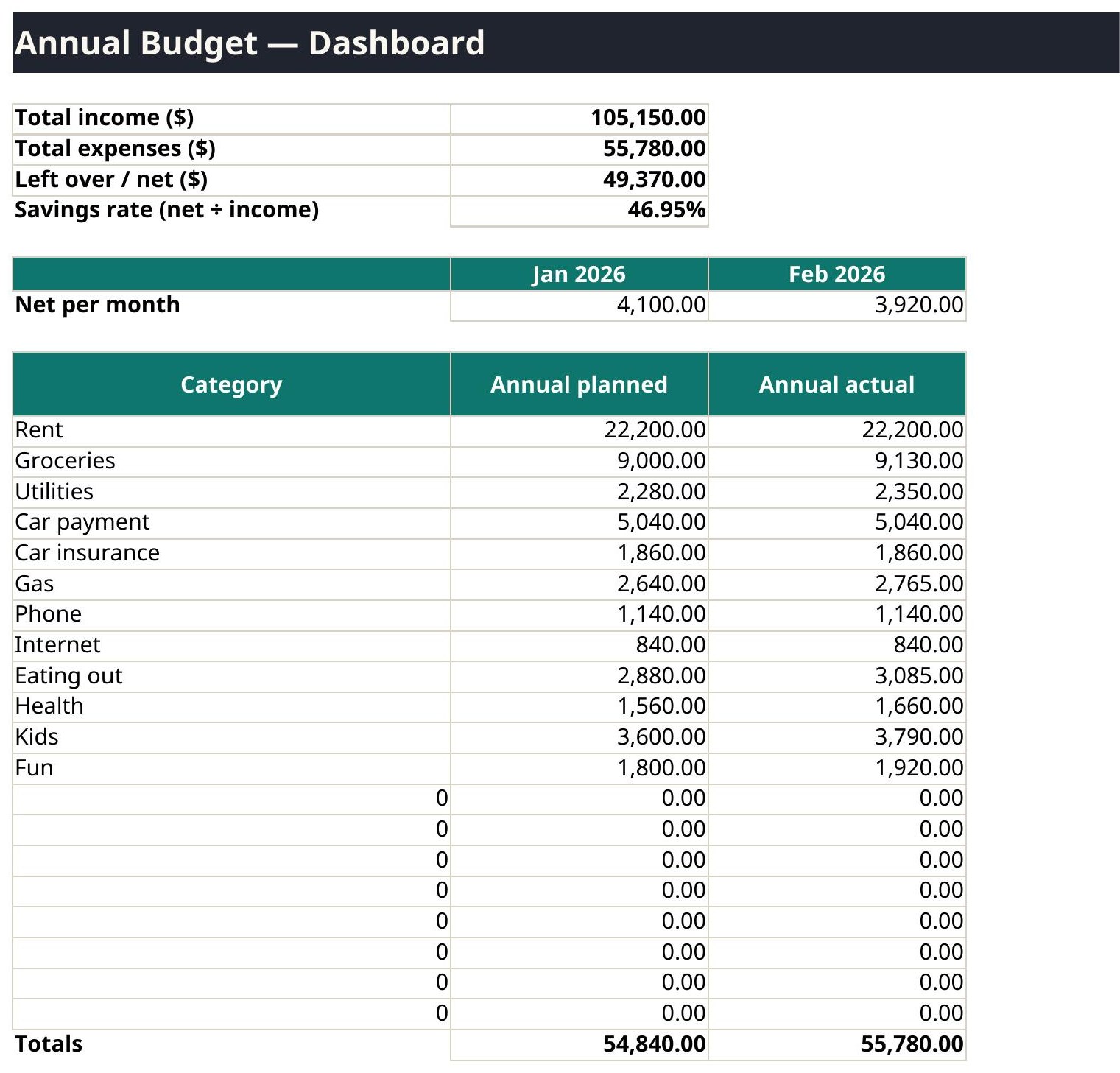
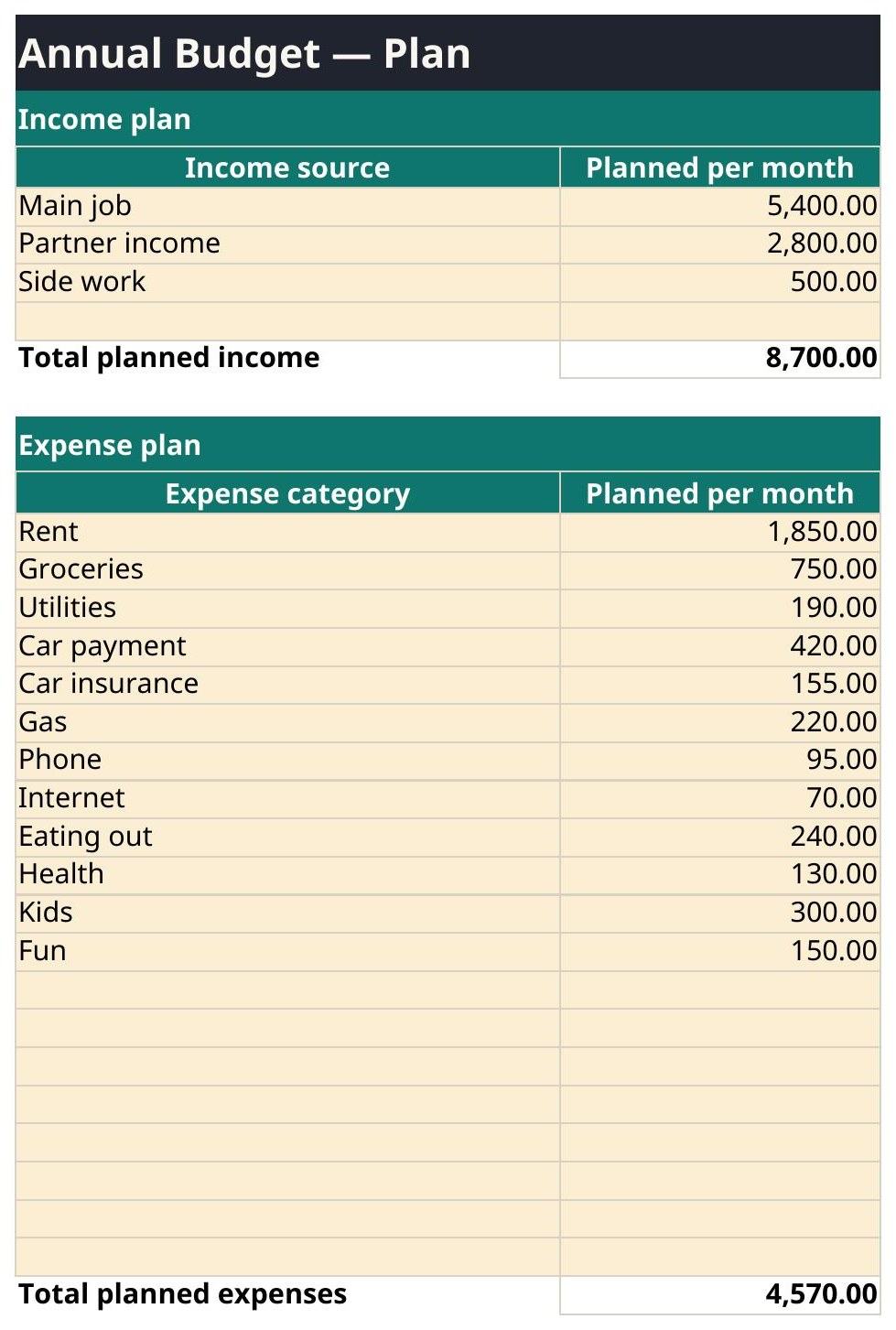
The worked example in the demo copy
Income $105,150 · Expenses $55,780 · Net $49,370 · Savings rate 46.95%. Those are the demo file's own totals, recomputed and checked before this page was written.
The tabs, exactly as shipped
| # | Tab |
|---|---|
| 1 | Start Here |
| 2 | Settings |
| 3 | Plan |
| 4 | Tracker |
| 5 | Dashboard |
5 tabs. The tab names above are read from the shipped file itself.
What is inside your download
- Excel copy (clean, ready for your numbers) and a filled Excel example copy
- Google Sheets copy (clean) and a filled Google Sheets example copy
- QuickStart PDF — one page, the setup in plain words
- Version 1.0 — October 2026, with a changelog on the Start Here tab
Questions
Where are my files?
Right after checkout, your download page lists every file: the Excel copy, the Google Sheets copy, a filled example copy of each, and the one-page QuickStart PDF. The same links are in your checkout email. Download them all and keep the clean copies untouched as your backups.
Sheets or Excel — which do I open?
Whichever you use. Open the file with GoogleSheets in its name in Google Sheets (File → Make a copy, then work in your copy), or open the plain file in Microsoft Excel. Both copies do the same math — they were checked against each other.
What if I type over a formula?
You should not be able to: formula cells are locked and every sheet is protected. Type only in the pale amber cells. If a number ever looks wrong, close the file, go back to your clean copy, and re-enter just the pale cells — that is why the clean copy stays untouched.
Can I use it on my phone?
Yes. Both the Google Sheets app and the Excel app open these files, and the formulas work the same. A bigger screen is easier for the wide tabs, but checking a dashboard number on your phone works fine.